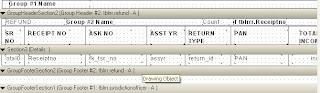
Crystal Report to display records between fromdate and todate
1) First step is to make new parameters by right clicking on paramaters fields in field explorer.
Then click on New.

2) Now create a parameter called fromdate for start date

3) Similarly create a parameter called todate for end date

4) On form I have taken two datetimepicker controls for selecting from and to date

using System;
using System.Collections.Generic;
using System.ComponentModel;
using System.Data;
using System.Drawing;
using System.Text;
using System.Windows.Forms;
using System.Data.Odbc;
using CrystalDecisions.CrystalReports.Engine;
using CrystalDecisions.ReportSource;
using CrystalDecisions.Shared;
using CrystalDecisions.Windows.Forms;
namespace sampletest
{
public partial class frmReturnReceipt : Form
{
DataSet ReportDB;
String str = "";
String FromDate, ToDate;
private void frmReturnReceipt_Load(object sender, EventArgs e)
{
}
public void Set_Report_Dataset()
{
try
{
RR rptRR = new RR();
TableLogOnInfos crtableLogoninfos = new TableLogOnInfos();
TableLogOnInfo crtableLogoninfo = new TableLogOnInfo();
ConnectionInfo crConnectionInfo = new ConnectionInfo();
Tables CrTables;
ParameterFieldDefinitions crParameterFieldDefinitions ;
ParameterFieldDefinition crParameterFieldDefinition ;
ParameterValues crParameterValues = new ParameterValues();
ParameterDiscreteValue crParameterDiscreteValue = new ParameterDiscreteValue();
crParameterDiscreteValue.Value = dateTimePicker1.Value.ToString("yyyy-MM-dd");
crParameterFieldDefinitions = rptRR.DataDefinition.ParameterFields;
crParameterFieldDefinition = crParameterFieldDefinitions["fromdate"];
crParameterValues = crParameterFieldDefinition.CurrentValues;
crParameterValues.Clear();
crParameterValues.Add(crParameterDiscreteValue);
crParameterFieldDefinition.ApplyCurrentValues(crParameterValues);
crParameterDiscreteValue.Value = dateTimePicker2.Value.ToString("yyyy-MM-dd");
crParameterFieldDefinitions = rptRR.DataDefinition.ParameterFields;
crParameterFieldDefinition = crParameterFieldDefinitions["todate"];
crParameterValues = crParameterFieldDefinition.CurrentValues;
crParameterValues.Add(crParameterDiscreteValue);
crParameterFieldDefinition.ApplyCurrentValues(crParameterValues);
crConnectionInfo.ServerName = "servername";
crConnectionInfo.DatabaseName = "database_name";
crConnectionInfo.UserID = "username";
crConnectionInfo.Password = "password";
CrTables = rptRR.Database.Tables;
foreach (CrystalDecisions.CrystalReports.Engine.Table CrTable in CrTables)
{
crtableLogoninfo = CrTable.LogOnInfo;
crtableLogoninfo.ConnectionInfo = crConnectionInfo;
CrTable.ApplyLogOnInfo(crtableLogoninfo);
}
crystalReportViewer1.ReportSource = rptRR;
crystalReportViewer1.Refresh();
}
catch (Exception e1)
{
MessageBox.Show(e1.ToString());
}
}
private void btnpreview_Click(object sender, EventArgs e)
{
Set_Report_Dataset();
}
}
}